
Feeds
Understanding Feeds in Stroom: the logical containers for data streams.
In Stroom, a Feed is a logical container and identifier for a stream of related data. It acts as the "label" that follows data from the moment it is received until it is finally processed and indexed.
What is a feed?
A feed is not a physical storage location (that is the Stream Store), but a logical grouping. Every piece of data that enters Stroom must be assigned to exactly one feed. This assignment allows Stroom to:
- Route data: Processor filters use feed names to decide which pipelines should process which data.
- Manage security: Permissions can be set at the feed level to control who can view or process specific datasets.
- Define retention: You can set different data retention policies for different feeds.
The feed UI page
When you open a Feed document it shows these tabs:
- Data: the feed's streams, what was received and what pipelines wrote back to it. It is the stream browser described in The Data tab, which also explains when its toolbar buttons are enabled.
- Active Tasks: the processing tasks for the feed's streams, finished ones included. See The Active Tasks tab.
- Settings: described below.
- Documentation and Permissions: as on every document.
Data needs the Data - View application permission and Active Tasks needs Manage Processors; without them the tab is not shown.
Settings tab
The Settings tab holds what Stroom needs to know about the data arriving on the feed. Unlike the tick boxes on a Processors tab, changes here take effect only when the feed is saved: the tab title shows * until you click Save .
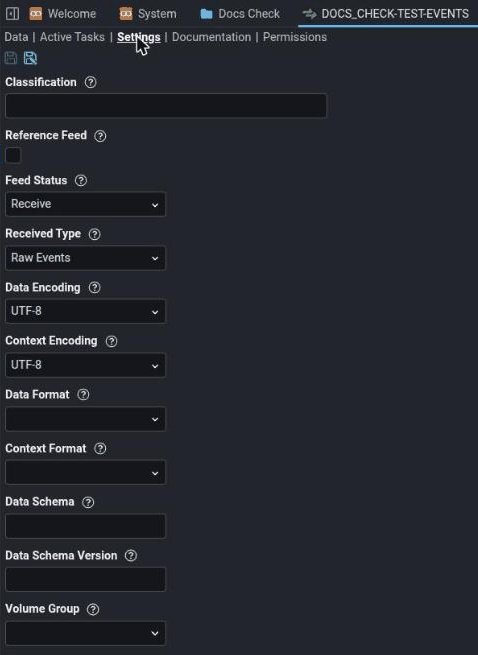
| Field | Means |
|---|---|
| Classification | The classification or protective marking of the feed's data, such as OFFICIAL-SENSITIVE, shown on screens that display it. |
| Reference Feed | Marks the feed as holding reference data for lookups. It also stops data on it being split into several sub-streams. |
| Feed Status | What happens to data sent to the feed: Receive, Reject (refused with a 406) or Drop (accepted with a 200 and thrown away). See Controlling what is accepted. |
| Received Type | The stream type given to received data, usually Raw Events, or Raw Reference on a reference feed. |
| Data Encoding, Context Encoding | The character encoding of the data and context parts of received streams. Context data is supplementary information, such as environment details, sent alongside the events. |
| Data Format, Context Format | The format of the data and context, such as XML, JSON or CSV. Descriptive: setting it does not change how the data is parsed. |
| Data Schema, Data Schema Version | The XML schema the data conforms to, if it has one. A pipeline can check it with a schema filter. |
| Volume Group | The group of volumes the feed's data is stored in, which lets administrators put busy feeds on faster storage. |
Why Feed Status is greyed out
Feed Status only has an effect when Stroom checks feed status on receipt, which is when the property stroom.receive.receiptCheckMode is FEED_STATUS, the default. If it is set to anything else, for example RECEIPT_POLICY to use data receipt rules, the box is greyed out and its value is ignored.
So a greyed-out Feed Status is not a permission problem. It means receipt is being decided somewhere else.
Naming conventions
Stroom enforces the characters a feed name may use. By default a name must match ^[A-Z0-9_-]{3,}$: upper-case letters, digits, hyphens and underscores, at least three characters long. Creating or renaming a feed with any other name is rejected with an Invalid name error, so my-feed or MY FEED cannot be created. The pattern is the stroom.feed.feedNamePattern property, so an administrator can change it.
Names are matched exactly when data arrives: a sender posting Feed: my-feed does not reach MY-FEED. See Choosing a feed.
Within those characters, how you structure names is a convention rather than a rule. A common practice is a hierarchical pattern:
SYSTEM-SUBSYSTEM-DATATYPE
Examples:
FIREWALL-CISCO-TRAFFICWINDOWS-OS-SECURITYAPP-WEBSERVER-ACCESS
Consistency in naming makes it much easier to create broad Processor Filters using wildcards (e.g., FIREWALL-*). For more on deciding how to split data between feeds, see the same page.
Stream types and their uses
A feed configuration references several "Types". These types are used by the system to categorise data at different stages of its lifecycle:
- Received type: Usually set to
Raw Events. This is the format the data is in when it first hits the Stroom Datafeed. - Output types: When a pipeline processes data, it writes to a new stream type (e.g.,
EventsorContext). - Reference data types: Reference feeds often use types like
Raw ReferenceorReference.
Where types are referenced
Types are primarily used in Processor Filters. When you create a filter to trigger a pipeline, you specify both the Feed and the Stream Type (e.g., "Process all Raw Events for feed MY_FEED").
Getting data into a feed
There are three mechanisms for sending data to a Stroom feed:
Upload within the UI
You can upload a file within the Stroom UI by using the Upload button within a feed.
You will be asked for the following information:
Meta data
Any metadata key:value pairs required. See below for more information.
Type
The type of this data within the stream. See above for more information.
Effective date
The Effective Date is stored as the EffectiveTime attribute on the resulting stream. Its primary use is for Reference Data lookups:
Lineage selection
- When a pipeline performs a lookup against a reference feed, Stroom uses the event time of the record being processed to find the most appropriate reference stream.
- Latest-not-after logic: Stroom will select the reference stream whose
EffectiveTimeis the latest possible value that is still less than or equal to the event time.
If a feed is not used for reference data, the Effective Date is purely informational and defaults to the creation time of the stream if not provided. However, it can still be used as a filter criterion in search expressions.
Direct HTTP POST (the datafeed)
Data can be posted directly to the Stroom datafeed endpoint using standard HTTP tools like curl. The headers, responses and rules are set out in the datafeed contract.
- Endpoint:
https://<stroom-host>/stroom/datafeed./stroom/noauth/datafeedis a legacy alias that behaves the same way, including requiring authentication by default. - Method:
POST - Body: The raw bytes of the data.
Stroom Proxy
For high-volume production environments, Stroom Proxy is used (see Stroom Proxy and data receipt). Data is sent to the Proxy, which aggregates many small files into larger ZIP archives before forwarding them to the main Stroom cluster. This significantly improves ingest performance and resilience.
If data you send does not appear on the feed, see Is data arriving?.
Supplying metadata
Metadata (attributes about the data) is just as important as the data itself. It is supplied alongside the data during ingestion.
Via HTTP headers (direct POST)
When using the direct Datafeed endpoint, metadata is supplied as HTTP headers. Common headers include:
Feed: The name of the destination feed (Required).System: The source system name.Environment: The environment (e.g., PROD, DEV).Device: The hostname or IP of the source device.
Example:
curl -X POST -H "Authorization: Bearer ${STROOM_TOKEN}" -H "Feed: MY_FEED" -H "System: FIREWALL" --data-binary @logs.txt https://stroom/stroom/datafeed
Via meta files (Stroom Proxy)
When sending data to a Proxy via a file-drop or script, you supply a .meta file alongside your data file. The meta file is a simple text file containing Key:Value pairs.
my-data.log (The data) my-data.log.meta (The metadata):
Feed:MY_FEED
System:FIREWALL
Environment:PROD
Stroom Proxy will read these pairs and attach them to the stream in the Stroom Meta Store. These attributes can then be used in Processor Filters or accessed as "Header" variables in your XSLT transformations.
The stepper: seeing inside the pipe
Because pipelines can be complex, Stroom provides a tool called the Stepper within a feed. It allows you to "step" through the data record by record. You can see the input and output of every single element in the pipeline simultaneously. This makes it easy to identify exactly where a transformation might be failing. See Pipeline debugging for how to use it.