
Content Management
Organise, version, move and share Stroom content, from the explorer tree to zip exports, Git repositories and content packs.
Everything you build in Stroom is content: feeds, pipelines, translations, indexes, dashboards, rules and the folders that hold them. Each item is a document with a type, a name and a UUID that never changes. This page covers how content is organised, how its history is kept, and how it moves between Stroom instances.
The explorer tree
The explorer tree on the left of the screen holds every document you can see. Its layout is up to you: group content by data source, by team or by project. See User interface for a tour of the tree and the folder views.
Create a document by right-clicking a folder and choosing New. The new-document menu groups document types like this:
| Group | Examples |
|---|---|
| Data Processing | Feed, Pipeline |
| Transformation | Text Converter, XSL Translation, XML Schema |
| Search | Dashboard, Query, Analytic Rule |
| Indexing | Lucene Index, Plan B, View |
| Configuration | Dictionary, Visualisation, Script, Documentation, Git Repo |
Which types you see depends on your permissions. A folder can be given create permissions for particular document types, so a user may be able to create dashboards in one folder and nothing else. See Users, groups and permissions.
The tree only shows what you have permission to see. A user with no permissions sees an empty tree. A folder is shown if you can see anything inside it, even when you can't open the folder itself.
Document history
Stroom keeps an audit trail for every document. To see it, right-click a document and choose Info. The dialog shows the document's UUID, type and name, then an Audit Info table with one row per recorded action: the time, the user and the action.
The recorded actions are Created, Updated, Deleted, Imported, Exported, Copied, Moved and Renamed.
Stroom also stores a snapshot of the document's data each time it changes, so earlier content is not lost when a document is edited. Snapshots are deduplicated, so saving an unchanged document doesn't store another copy.
Note
Document history arrived in Stroom 7.13. Documents that existed before the upgrade start with a Created entry and, if they had been changed, one Updated entry. Earlier changes were never recorded.
Deleting content
Content in Stroom is heavily linked. A pipeline uses translations and schemas, a processor filter uses a feed, and a dashboard queries an index. Stroom records these links in both directions, and you can see them from a document's context menu:
- Dependencies lists the documents this one needs.
- Dependants lists the documents that need this one.
Tools > Dependencies lists every link in the system, each with a status of OK or Missing. Filtering for Missing is a quick way to find content that is already broken.
When you delete a document that has dependants, the confirmation warns you and lists them. Deleting a folder deletes everything in it, and the confirmation counts the contained items by type. In both cases the list only names documents you have permission to see, but tells you when others exist.
A deleted document is first marked as deleted. The Doc Store - Physical Delete job removes it from the database once it has been deleted for longer than stroom.docstore.physicalDeleteAge (30 days by default).
Import and export
Any content can be exported to a zip file and imported into another Stroom.
To export, either choose Tools > Export, or select items in the explorer tree and choose Export from the context menu. Pick the items to include, and Stroom confirms how many documents of each type will be exported before writing StroomConfig.zip.
To import, choose Tools > Import, or Import from the explorer tree's context menu, and select the zip file. Stroom shows each item in the file and what will happen to it before anything changes. Documents are matched by UUID, so importing a newer version of a document updates it rather than creating a copy. By default an existing document keeps its current name and folder. Tick Use Import Names or Use Import Folders to take them from the file instead.
Export needs the Export Configuration application permission and import needs Import Configuration. You can only export documents you can see.
Warning
The zip format has changed between Stroom versions. Stroom can import older formats, but an older Stroom may not be able to import a file exported by a newer one.
How imported content is matched
Every document has a UUID, and an import matches documents by UUID, not by where they sit in the explorer tree. If a document with the same UUID already exists anywhere in Stroom, the import updates that document rather than creating a new one. Folders are matched the same way, falling back to a folder of the same name in the same place.
What happens to an existing document's position depends on Use Import Folders:
- Unticked, the default: the document is updated where it is, and keeps its current folder.
- Ticked: the document is updated and moved to the folder the import puts it in.
Use Import Names works the same way for names.
Fails silently
The same content cannot be imported twice into different places.
Once a document has been imported, by a direct import or from a Git Repo or the content store, importing it again, to any folder, finds the existing document by its UUID. With the default settings it is updated where it already is, and nothing appears in the folder you chose; with Use Import Folders ticked it is moved out of its old location instead. Either way you still have one copy, and anything that relied on it being in the old place, such as a Git Repo, now manages it from wherever it ended up.
To have a second, independent copy, copy the document in the explorer tree, which gives the copy a new UUID, rather than importing it again.
Processor filters
Processor filters are not documents in the explorer tree. They travel with the pipeline they belong to, and follow different rules from everything else on import.
On export, a pipeline's filters are written into the zip alongside it, but only those with Include in Export ticked. These are always left out:
- deleted filters and reprocessing filters;
- filters whose expression refers to a specific stream by
IdorParent Id; - the processor filters of streaming analytic rules, which are never exported.
What is exported is the expression, including any feed dependencies, the priority, Max Processing Tasks, Max Create Time, the task creation delay and the processing profile's name. The filter's database ID, its tracker and its Run As User are not.
On import:
- A filter that already exists is not changed. It is matched by UUID, and if it exists and is not deleted the import skips it, with the warning Unable to import processor filter as it already exists.
- A deleted filter is restored, as a new filter that takes over its UUID.
- Whether it is enabled is decided by the import, not the zip. The Enable Processor Filters box on the import dialog, off by default, sets every imported filter enabled or disabled.
- It starts from the date you give. From this date becomes the filter's Min Create Time, replacing any exported value; left blank, the filter starts from the first stream. Its tracker is new, so an enabled filter then works through all the stored data that matches.
- It runs as you. The Run As User is set to the user doing the import, who needs permission to view the pipeline.
- It has no processing profile. The profile name is in the export but is not applied, so set the profile again after importing.
How filters arrive depends on the route:
| Route | Imported filters are |
|---|---|
| Tools > Import | Enabled only if you tick Enable Processor Filters |
| Git Repo Pull from Git | Always disabled |
| Content store install or upgrade | Always disabled |
Content pack import on start (stroom.contentPackImport), and the command-line and headless imports | Always enabled, from the first stream |
Fails silently
Changes to a filter are never imported over an existing one.
Because an existing filter is skipped, editing a filter's expression in an export, or in a Git repository, and importing it again changes nothing, and the import only warns. This is easy to miss with a Git Repo: each pull updates the pipeline, while its filters stay exactly as they were first imported, disabled.
To take a changed filter, delete the existing one first and then import, or edit the filter in Stroom directly.
Import and export through the API
Content can be moved without the user interface. Calls authenticate with an API key in an Authorization: Bearer header.
- Export everything: a
GETto/api/export/v1returns a zip of all content the caller can read. The caller needs Export Configuration, and the propertystroom.export.enabledmust betrue. It isfalseby default. - Import: first upload the zip with a multipart
POSTto/importfile.rpc, which returns a resource key. ThenPOSTthat key to/api/content/v1/importwith an import mode.IGNORE_CONFIRMATIONimports everything without asking.
Stroom can also import every content pack it finds in a directory when it starts. Set stroom.contentPackImport.enabled to true (it is false by default). The directory is stroom.contentPackImport.importDirectory.
Git-backed content
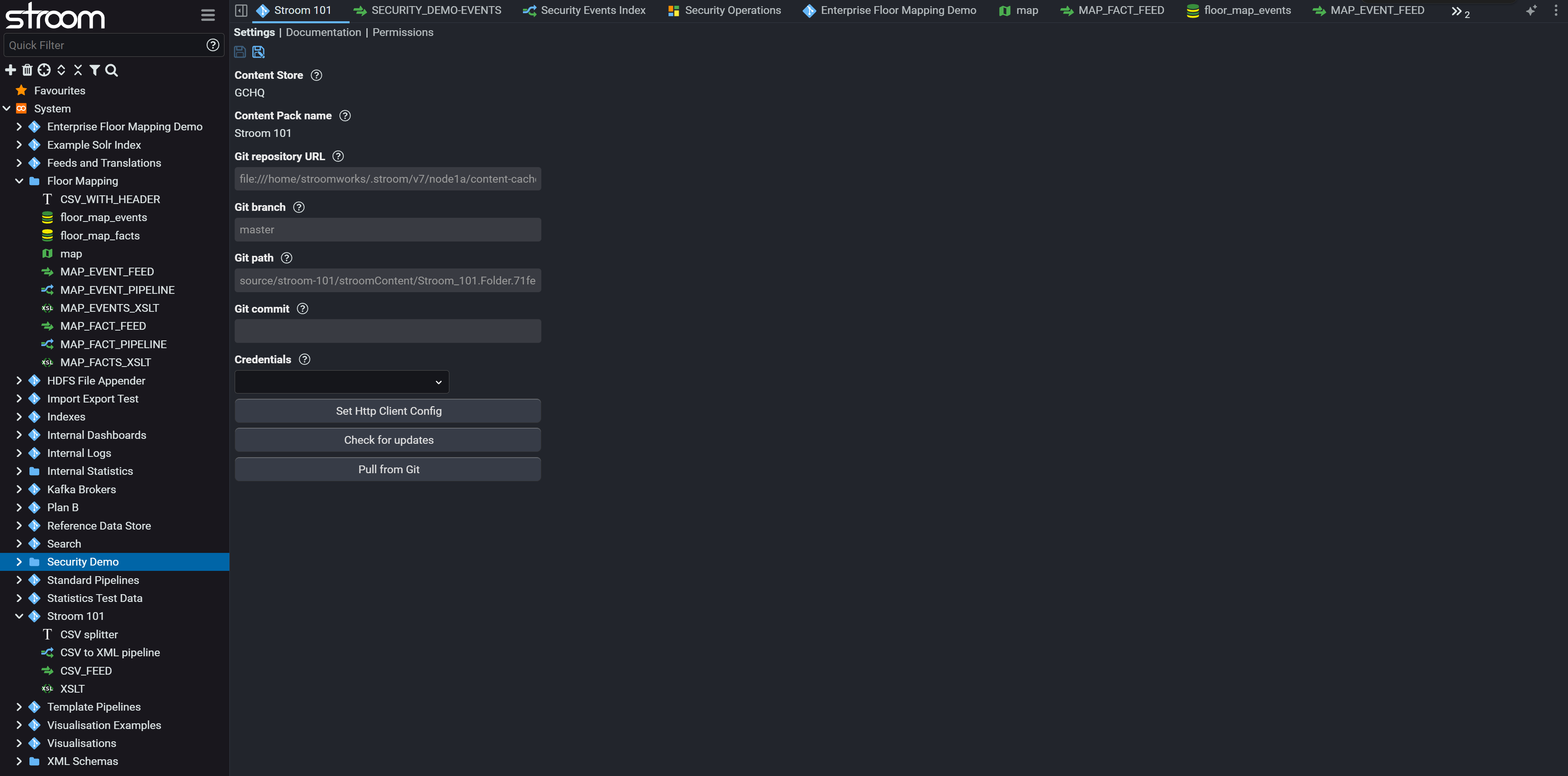
A Git Repo document links part of the explorer tree to a folder in a Git repository. Everything you put below the Git Repo in the tree is managed by it, and can be pulled from Git or pushed back to it. This is a way to keep content under version control, or to share it between Stroom clusters.
Create one from New > Configuration > Git Repo. Its Settings tab holds:
| Setting | What it does |
|---|---|
| Git repository URL | The repository, over HTTPS or SSH. |
| Git branch | The branch to use. |
| Git path | The folder within the repository that holds the content. |
| Git commit | Optional. Pins the content to one commit. |
| Automatically push | Pushes local changes every minute through the Git Repo Push job. |
| Credentials | A stored credential: username and password, access token or SSH key. |
| Set Http Client Config | HTTP and TLS settings for reaching the Git server, such as a custom trust store. |
The buttons on the same tab do the work:
- Check for updates shows what has changed in the repository, as a diff.
- Pull from Git imports the latest content into Stroom.
- Push to Git asks for a commit message, then pushes your changes.
Warning
Pulling from Git can overwrite or remove local changes below the Git Repo.
A pull is an import, so the matching rules apply, always with Use Import Folders and Use Import Names. Processor filters arrive disabled, and are not updated by later pulls; see Processor filters.
Fails silently
Content moved out of a Git Repo is pulled back into it.
Documents are matched by UUID, so a document you move out of the Git Repo's folder is still the one the repository holds. The next pull updates it, renames it if its name has changed, and moves it back to its place below the Git Repo. The same happens if the same content is managed by two Git Repos, or by a Git Repo and a separate import: whichever runs last decides where it lives.
To take a document out of a Git Repo's control, copy it, which gives the copy a new UUID, and delete the original from the repository.
Git Repos can be nested. A Git Repo inside another one manages its own content, and the outer one leaves it alone.
Credentials are kept in Security > Credentials Manager and used by name, so a password or key is never stored in the document itself.
The content store
The Content Store installs ready-made content packs: tested sets of schemas, pipelines, translations and other content. Open it from Tools > Content Store, pick a pack and click Install. Stroom creates a Git Repo document for the pack and pulls its content. Because this is a Git pull, the pack's processor filters arrive disabled, and content already in Stroom with the same UUIDs is updated and moved into the pack's folder; see How imported content is matched.
When a newer version of an installed pack is available, the Upgrade button becomes active. You can also use Check for updates and Pull from Git on the pack's Git Repo. A pack's Git settings are controlled by the Content Store, and changes can't be pushed back. If you need to push, create your own Git Repo.
A Content Store is a YAML file listing packs and where each one lives in Git. Stroom uses the public store by default. Add others to stroom.contentStore.urls.
Warning
Content in a pack has full access to your Stroom. Review a pack before you trust it.
To remove a pack, delete its Git Repo document.
Naming conventions
Stroom enforces one naming rule: feed names must match stroom.feed.feedNamePattern, which by default allows upper-case letters, digits, _ and -, at least three characters long. Feed names must also be unique. Beyond that, consistent names make content easier to find and to share. A few habits help:
- Name feeds in one pattern everywhere. An established convention is
<SYSTEM>-<ENVIRONMENT>-<TYPE>-<EVENTS/REFERENCE>-<VERSION>. - Keep a pipeline, its translations and its feeds together in one folder per data source.
- Keep shared content, such as schemas and standard pipelines, in its own folder.
Related pages
- User interface: the explorer tree and folder views.
- Users, groups and permissions: who can see, edit and create content.
- Feeds: the documents most other content hangs from.
- Nodes, jobs and properties: the jobs that clean up deleted content and push to Git.