
Your First Translation
Building a pipeline that turns the CSV you sent into structured events, using the Stepper to prove each element.
Raw data is stored exactly as it arrived. To search it you first have to give it a shape, and that is what a pipeline does: a parser turns the bytes into XML events, and an XSLT reshapes those events into a common form.
This is the part of Stroom that takes the longest to learn, and the part where the Stepper earns its keep.
What you are building
Source → DSParser → XSLTFilter → XMLWriter → StreamAppender
The DSParser uses a Text Converter to split the CSV into fields. The XSLTFilter turns those fields into events. The XMLWriter and StreamAppender write the result back out as a new stream.
The documents
Create three documents, in this order, because the pipeline will point at them. Each is created by right-clicking a folder in the explorer tree and choosing from the New menu, and each needs saving once you have edited it.
A Text Converter called TEST-EVENTS-SPLITTER, from New > Transformation > Text Converter. On its Settings tab, set Converter Type to Data Splitter. Then paste this into its Conversion tab:
<?xml version="1.0" encoding="UTF-8"?>
<dataSplitter
    xmlns="data-splitter:3"
    xmlns:xsi="http://www.w3.org/2001/XMLSchema-instance"
    xsi:schemaLocation="data-splitter:3 file://data-splitter-v3.0.xsd"
    version="3.0">

  <!-- The first line is the heading: store each column name -->
  <split delimiter="\n" maxMatch="1">
    <group>
      <split delimiter=",">
        <var id="heading" />
      </split>
    </group>
  </split>

  <!-- Every other line is a record -->
  <split delimiter="\n">
    <group value="$1">
      <split delimiter=",">
        <!-- Name each value after its column heading -->
        <data name="$heading$1" value="$1" />
      </split>
    </group>
  </split>
</dataSplitter>
This is what tells Stroom your file is comma-separated with a header row. It emits one <record> per line in the records:2 namespace, with one <data> element per column, named from the heading: time, user, action and ip. The CSV example with a heading explains how it works.
An XSLT called TEST-EVENTS-XSLT, from New > Transformation > XSL Translation. A new XSLT document opens empty, so paste in the whole stylesheet:
<?xml version="1.0" encoding="UTF-8"?>
<!-- The Data Splitter emits records:2, so that is the default namespace here.
     Get this wrong and every template silently matches nothing. -->
<xsl:stylesheet
    xpath-default-namespace="records:2"
    xmlns:xsl="http://www.w3.org/1999/XSL/Transform"
    version="2.0">

  <xsl:template match="records">
    <Events>
      <xsl:apply-templates />
    </Events>
  </xsl:template>

  <xsl:template match="record">
    <Event>
      <Time><xsl:value-of select="data[@name='time']/@value" /></Time>
      <User><xsl:value-of select="data[@name='user']/@value" /></User>
      <Action><xsl:value-of select="data[@name='action']/@value" /></Action>
      <IP><xsl:value-of select="data[@name='ip']/@value" /></IP>
    </Event>
  </xsl:template>
</xsl:stylesheet>
This turns each split record into an <Event>. It is deliberately minimal; real translations usually write the event-logging:3 schema instead.
A Pipeline called TEST-EVENTS, from New > Data Processing > Pipeline. Build the element chain above on its Structure tab. To add an element, select the one it follows, click , choose the category and then the element, and give it a name in the Create Element dialog. The menus label the elements DS Parser, XSLT Filter, XML Writer and Stream Appender.
Then set each element's properties, by selecting the element and double-clicking a property row:
- On the DS Parser, set
textConvertertoTEST-EVENTS-SPLITTER. - On the XSLT Filter, set
xslttoTEST-EVENTS-XSLT. - On the Stream Appender, set
streamTypetoEvents. It must be set: the appender has no default stream type.
Save the pipeline.
The content pack that ships with the evaluation stack has working examples of all three. Copying one that works and changing it is a faster way to learn this than starting from an empty document.
How long: immediate
The Stepper is immediate: it runs one record through the pipeline as you watch, with no processing to wait for.
That is the whole reason to use it here. Processing a feed is asynchronous and slow; stepping is neither.
Check it worked
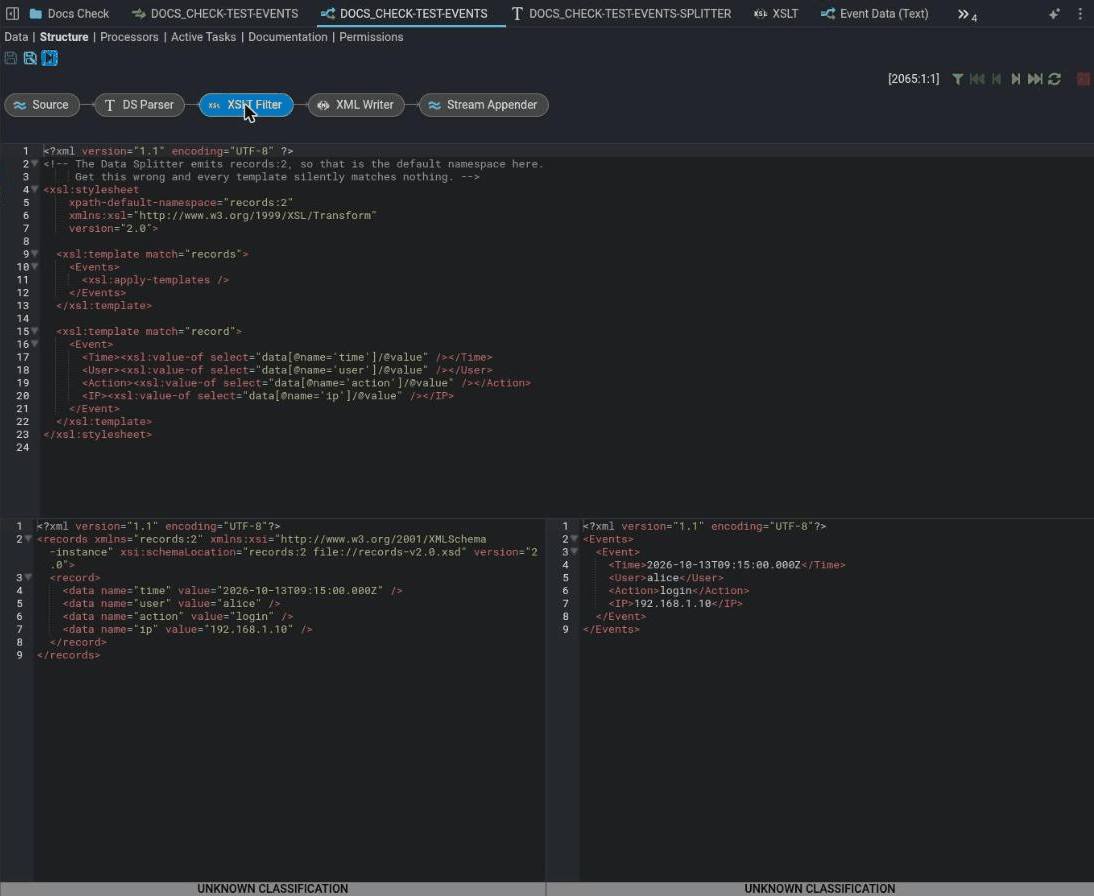
Open the feed's Data tab and select your Raw Events stream. Click the blue step button at the bottom right of the stream's pane, and pick TEST-EVENTS in the Choose Pipeline To Step With dialog. The Stepper opens on the pipeline's Structure tab. Select an element to see its document above, its input on the left and its output on the right, and walk forward one record at a time with the step buttons at the top right.
At each element, the Stepper shows you its input on one side and its output on the other. Check three things:
- The DSParser turns a CSV line into XML records, with one field per column.
- The XSLTFilter turns those records into events. If its output pane is empty, the XSLT matched nothing.
- No red or yellow markers appear in the margin.
The check that matters most
Every element in the chain shows output for the record you are stepping.
An element with input and no output is the one that is broken, and the Stepper names it for you. This is the fastest diagnostic in Stroom and there is no API for it, so it is worth learning now.
This does not prove it worked
An XSLTFilter producing output is not proof the output is right. Read it. An XSLT that matched a different element than you intended still produces valid XML.
Stepping one record is not proof the translation handles the file. Step several, including the first and the last, and any record that looks unusual.
Fails silently
An XSLT whose namespace does not match its input matches nothing, and says nothing.
The parser emits XML in a namespace, and the XSLT's xpath-default-namespace has to agree with it. When it does not, every template fails to match, the transform produces a valid empty result, and you get an output stream containing no events.
It is the single most common beginner mistake, and it looks exactly like "nothing happened". The Stepper shows it immediately: input on the left, nothing on the right.
If it isn't working
In order. Each step rules out a class of cause, so don't skip ahead.
- Does the Stepper open at all? If not, the pipeline has a structural problem rather than a translation one. Check every element has its properties set.
- Which element stops producing output? Step through and watch. That element is the problem; the ones before it are fine.
- If it is the parser, the Text Converter does not match the file. Check the delimiter, and whether you told it there is a header row.
- If it is the XSLT, check
xpath-default-namespaceagainst what the parser emits. See the trap. - Are there markers in the margin? Red is fatal, yellow is a warning. Click one to read it.
- Does a document the pipeline points at still exist? A deleted or renamed XSLT leaves the property pointing at nothing, and the element then produces nothing without reporting an error.
Next
The translation works on one record. Now make it run over the whole stream, and index the result: index and search it.