
Index and Search It
Running the pipeline over the whole stream, indexing the output, and searching it.
The Stepper proved the translation on one record. Now run it over everything and put the result somewhere you can search.
Process the stream
A pipeline does nothing until a processor filter selects data for it.
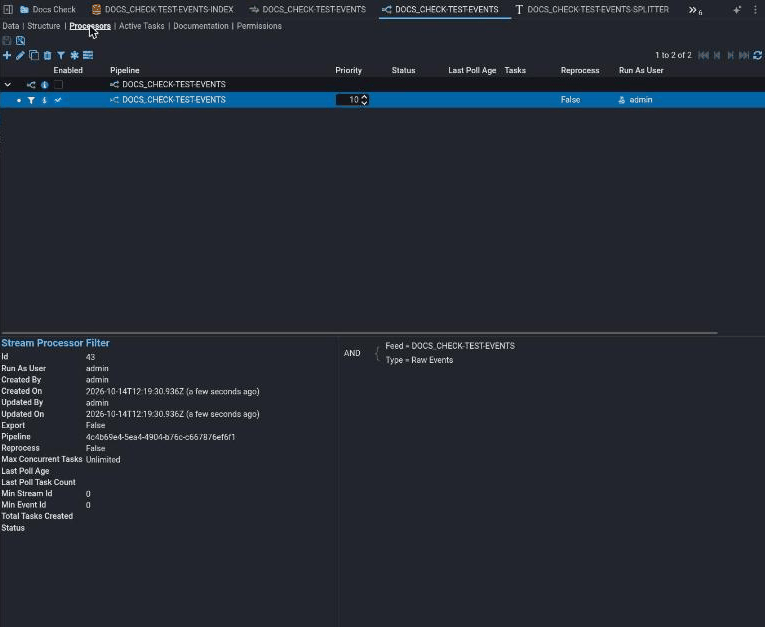
On the TEST-EVENTS pipeline's Processors tab, add a filter. Its expression builder takes terms on stream fields: make it Feed = TEST-EVENTS AND Type = Raw Events. Then enable both the processor row and the filter row beneath it, by ticking Enabled on each.
Fails silently
Enable both the processor and the filter.
A pipeline has a parent Processor and one or more Filters beneath it. Both have their own enabled state, and data flows only when both are on. A filter shown as enabled under a disabled processor processes nothing, and neither screen says so.
This is the most common cause of "nothing is happening" in all of Stroom.
When processing has run, the feed's Data tab has an Events stream for each Raw Events stream.
Index the output
Indexing is a second pipeline, run over the Events streams that the first one wrote.
The index
Create a Lucene Index called TEST-EVENTS-INDEX, from New > Indexing > Lucene Index.
A new index has no fields. On its Fields tab, add these, ticking Stored on each so that a table can show them later:
| Name | Type |
|---|---|
StreamId | Id |
EventId | Id |
EventTime | Date |
User | Text |
Action | Text |
IP | Text |
StreamId and EventId let a search result find its way back to the original event. EventTime is the name the index's Settings tab expects in Main Time Field Name by default; if you call the time field something else, change that setting to match.
On the Settings tab, set Volume Group, for example to Default Volume Group, and save the index.
Fails silently
Set its volume group, or it will index nothing.
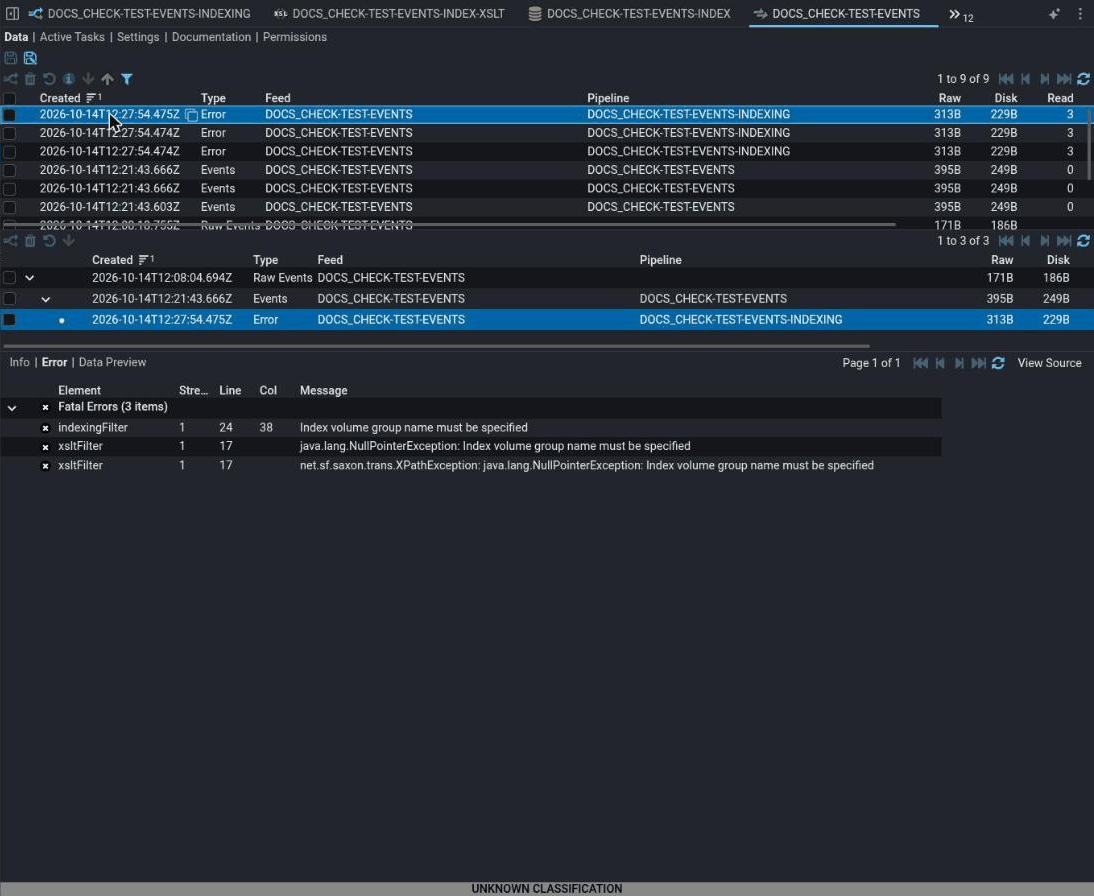
An index needs a volume group naming where its shards are written. Without one the index document looks complete, its field list is populated, the pipeline runs, and the indexing filter fails at processing time with Index volume group name must be specified.
The only visible sign is an Error stream on the feed. This is the single most common Lucene gotcha in Stroom.
The indexing XSLT
The IndexingFilter does not read your events directly. It reads records:2 XML, one <record> per document, with one <data> element per field, so an XSLT has to reshape the events first.
Create an XSLT called TEST-EVENTS-INDEX-XSLT:
<?xml version="1.0" encoding="UTF-8"?>
<xsl:stylesheet
    xmlns="records:2"
    xmlns:xsl="http://www.w3.org/1999/XSL/Transform"
    version="2.0">

  <xsl:template match="/Events">
    <records
        xmlns:xsi="http://www.w3.org/2001/XMLSchema-instance"
        xsi:schemaLocation="records:2 file://records-v2.0.xsd"
        version="2.0">
      <xsl:apply-templates select="Event" />
    </records>
  </xsl:template>

  <xsl:template match="Event">
    <record>
      <!-- Added to each Event by the idEnrichmentFilter -->
      <data name="StreamId" value="{@StreamId}" />
      <data name="EventId" value="{@EventId}" />
      <data name="EventTime" value="{Time}" />
      <data name="User" value="{User}" />
      <data name="Action" value="{Action}" />
      <data name="IP" value="{IP}" />
    </record>
  </xsl:template>
</xsl:stylesheet>
The data names must match the index's field names exactly.
The indexing pipeline
Create a second pipeline called TEST-EVENTS-INDEXING. On its Structure tab, set Inherit From to Template Pipelines/Indexing. It brings the whole chain with it:
Source → xmlParser → readRecordCountFilter → splitFilter → idEnrichmentFilter → xsltFilter → indexingFilter → writeRecordCountFilter
The IdEnrichmentFilter comes before the XSLT on purpose: it adds StreamId and EventId attributes to each event, and the XSLT copies them into fields.
Set only two properties:
- On
xsltFilter, setxslttoTEST-EVENTS-INDEX-XSLT. - On
indexingFilter, setindextoTEST-EVENTS-INDEX.
Save the pipeline. On its Processors tab, add a filter for Feed = TEST-EVENTS AND Type = Events, and enable both the processor and the filter, as before.
How long: not immediate
Processing is asynchronous. The task creator polls on an interval, then the work queues. For three events this is seconds; for real volumes it is minutes to hours.
Once the indexing pipeline has run, its documents are searchable straight away: a search reads the shard through its open writer, so it does not wait for anything to be written to disk. What does lag is the Doc Count on the index's Shards tab, which only changes when the Index Writer Flush job commits the shard, every 10 minutes by default.
Check it worked
Open TEST-EVENTS-INDEX and go to its Data tab. The tab fills in a StroomQL query for you, built from the index's fields with the time field first, so there is nothing to type and no field name to get wrong:
from "TEST-EVENTS-INDEX" limit 100 select EventTime, StreamId, EventId, User, Action, IP
The order of the other fields follows the index's field list. Click Run (the play button).
The check that matters most
One row per event you sent, three for each post of the sample file, with every column filled in.
If you see that, you are done: there is nothing further to check. Rows can only come back if the translation produced events, the indexing pipeline ran over them, the indexing filter wrote them to a shard, and the shard is searchable. Filled-in columns show the indexing XSLT wrote each field and that the fields are stored.
This does not prove it worked
The index's field list proves nothing. It is populated from the index's configuration, not its contents, and it looks complete and healthy when zero documents have been written.
An Events stream existing is not proof it contains events. A translation that matched nothing produces a valid, empty output stream.
A Doc Count of zero just after processing is not proof of failure, for the reason above. Trust the Data tab.
Create Dashboard on the same tab turns the query into a dashboard in one step; the next page builds one by hand so you can see how the parts fit together.
If the Data tab does not show what you expect, work through these in order. Each step rules out one stage of the chain, from the raw data to the index.
If it isn't working
In order. Each step rules out a class of cause, so don't skip ahead.
- Does the tab show an error instead of results? Read it, and check the index's Settings tab for a Volume Group.
- Has it simply not run yet? Open the indexing pipeline's Processors tab and select its filter. A blank Last Poll Age means the filter has never polled: its processor is off, or the Processor Task Creator job is not running. Total Tasks Created above zero, with the feed's Data tab showing no new streams yet, means the work is queued: wait and run the query again.
- Is there an
Errorstream onTEST-EVENTS? Open the feed's Data tab and read anyErrorstream. A missing volume group,Index volume group name must be specified, appears only here, and so do most other indexing failures. - Is there an
Eventsstream, and does it contain events? NoEventsstream means the first pipeline did not run, which is a processing problem. AnEventsstream with nothing inside it is the namespace mismatch from the previous page. - Are the indexing pipeline's processor and filter both enabled, and does the filter select
Type = Events? A filter onRaw Events, or one left disabled, means the indexing pipeline never sees the translated events, and nothing says so. - Does the indexing XSLT write
<record>elements whosedatanames match the index's fields? Step the indexing pipeline over anEventsstream and look at thexsltFilteroutput. TheIndexingFilterignores anything that is not arecords:2record, and ignores adataname that is not a field. - Rows come back, but some columns are empty? Either the XSLT does not write that field (step 6), or the field is not Stored. An index without a Default Extraction Pipeline can only show stored fields. Ticking Stored only affects documents written afterwards, so tick it, then reset the index and process the data again. See Choosing fields for why a changed field definition can take a while to apply.
- Fewer rows than events sent? Check for an
Errorstream as in step 3, and for streams the indexing filter has not reached yet as in step 2.
See Is search working? and Index problems for indexes beyond this walk-through.
Next
The data is searchable. Now put it on a dashboard.