
Analytic Rules
Turn a StroomQL query into a standing rule that raises detections, as events are processed or on a schedule, and sends them to a feed or by email.
An Analytic Rule is a StroomQL query that Stroom keeps running. Each row the query returns is a detection: something you asked Stroom to look out for. The rule sends its detections to one or more notification destinations, such as a feed or an email address.
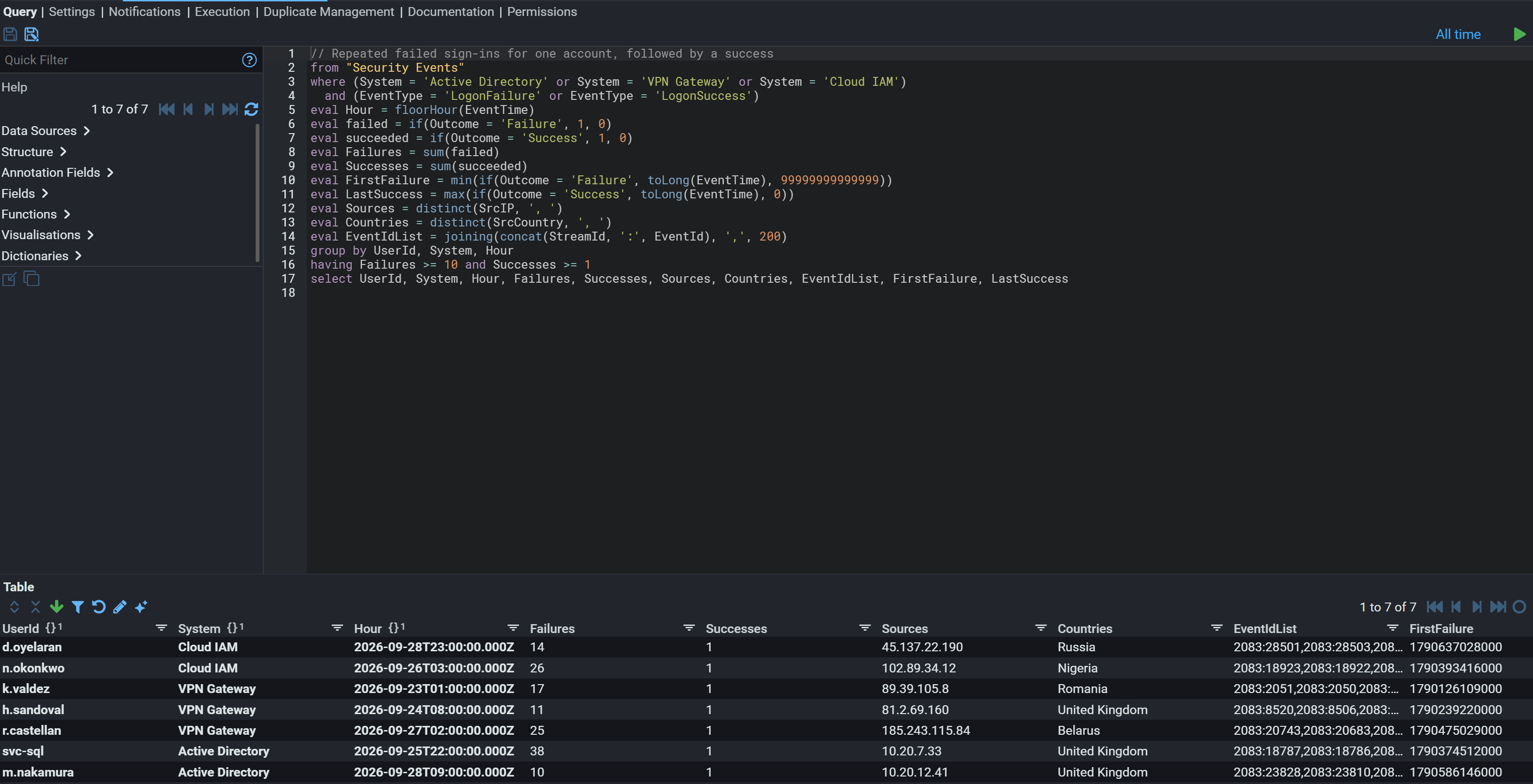
Rules are written in the same language as searches, so a rule usually starts life as a query you have already tried. See StroomQL and data sources for the language.
From query to rule
- Write and run the query in a Query document until it returns what you want.
- Click Create Rule on the query's toolbar, and choose where to save the new rule.
- Stroom copies the query and its time range into the rule. If the query has no
group by, the rule is set up as a streaming rule. If it groups, it is set up as a scheduled query. - Check the settings, add notifications and set up execution (see below), then save.
You can also create an Analytic Rule directly in the explorer tree and write the query in it.
The rule's Query tab is a full query editor. You can run the rule's query over the data already stored and look at the results before the rule is enabled, which is the easiest way to see what a rule will raise before it raises anything.
Processing types
The Processing Type decides when and how the rule's query runs.
| Processing type | Runs | Reads | Suits |
|---|---|---|---|
| Streaming | As streams are processed | A view | Matching single events as they arrive |
| Table Builder | Periodically, over a table built as streams are processed | A view | Counts and aggregates over time, kept up to date as data arrives |
| Scheduled Query | On one or more schedules | Any data source, typically an index or a view | Aggregates and look-backs over data that is already indexed |
Streaming
A streaming rule looks at events as they are processed, rather than searching an index afterwards. Its query must read from a View (see StroomQL and data sources): Stroom runs each stream through the view's extraction pipeline and tests every event against the query.
Which streams the rule sees is set by a processor filter on the Execution tab, the same kind of filter that drives pipeline processing. The view's Meta Filter is the default. See Processing for how processor filters and tasks work.
Table builder
A table builder rule also reads from a view, and runs matching streams through the view's pipeline. Rather than raising a detection per event, it adds each event to a table that it keeps, aggregated the way the query says. The Analytic Executor: Table Builder job then reads the table and raises detections for its rows.
Its settings are on the Execution tab:
| Setting | What it does |
|---|---|
| Enabled | Turns the rule on or off. |
| Processing Node | The node that builds the table. |
| Min Stream Create Time, Max Stream Create Time | Limit the streams read to those created in this range. |
| Aggregation Period | How long to wait for data before a period is treated as complete and its rows are reported. |
| Time To Keep Data In The Table | How long rows stay in the table before they are removed. |
Processing Info shows how far the rule has got. The Shards tab shows the data the table holds.
Scheduled query
A scheduled query runs the rule's query as a search, at the times you set. It can read from any data source a query can, so it suits rules over indexed data.
A rule can have any number of execution schedules, listed on the Execution tab. Each one has:
- Name and Enabled.
- Processing node: the node the query runs on.
- Schedule: a cron expression or a frequency.
- Start Time and End Time (Optional): the bounds of the schedule.
- Run as user: the query runs with this user's permissions.
A new schedule is named Daily, runs on the cron expression 0 0 0 * * ? (midnight every day), has a Start Time of now, and starts disabled. Tick Enabled before expecting it to run. See Execution schedules.
Each run has an execution time (when it actually ran) and an effective execution time (the time the run stands for). Relative dates in the query and its time range, such as day() - 1d (see date expressions), are worked out from the effective time. If the start time is in the past, the schedule works through each missed run in turn, so a new rule can be run over historic data and then carry on from now.
The history list below the schedules shows each run, with its times, its status (Complete or Error) and any message. Replay Execution sets up a new schedule, named after the original with (replay) added, that covers just that run's effective time. It starts disabled, so you can check it before enabling it.
Settings
The Settings tab holds:
- Level: Low, Medium, High or Critical.
- Status: Experimental, Testing, Stable or Deprecated. This describes the rule's maturity and is carried on its detections.
- Include Rule Documentation: puts the rule's Documentation tab text in its detections as their description. It is ticked by default. Untick it if the documentation should not leave Stroom, for example by email.
- Feed for errors: the feed that errors from running the rule are written to.
Notifications
The Notifications tab lists where the rule's detections go. A new rule comes with one Stream notification, enabled, with Maximum Notifications of 100 and no Destination Feed set. Set its Destination Feed, or the rule has nowhere to write its detections.
A rule can have several notifications, each with its own Destination Type:
- Stream: writes detections to the Destination Feed as a
Detectionsstream. Use Source Feed If Possible (Streaming Only) writes them to the feed the event came from instead. - Email: sends an email for each detection. Set To, Cc and Bcc, and the Email Subject Template and Email Body Template. Templates use Jinja syntax and can include any field of the detection. Test Template renders them, and Send Test Email sends one. Email needs Stroom's mail server settings to be configured.
Each notification can be turned off with Enabled. Limit Notifications stops it after Maximum Notifications, and Resume Notifications After says when it starts again.
What a detection holds
A detection written to a stream is XML in the detection:1 schema, so it can be processed, indexed and searched like any other data. Each one carries:
- the detect time, and the rule's name, UUID and version as the detector;
- the rule's documentation, if Include Rule Documentation is on;
- the value of each column the query returns;
- the linked events: the
StreamIdandEventIdof the events that caused it; - for scheduled queries, the schedule's name and the execution and effective execution times;
- the rule's level and status.
Because detections link to their events, an analyst can go from a detection straight to the data behind it, and record the investigation as an annotation.
Duplicate management
A rule that runs repeatedly can find the same thing more than once. The Duplicate Management tab controls this:
- Remember Notifications keeps the column values of each detection the rule sends, in a duplicate check store, so you can see them.
- Suppress Duplicate Notifications drops any detection identical to one already sent.
- Choose Columns and Columns compare only the columns you list (comma-separated and case-sensitive), rather than every column.
The tab lists the stored values, and you can delete rows from it so that those detections can be raised again. Changing the columns used for de-duplication means the store must be cleared.
Jobs
Rules are run by these jobs:
| Job | Runs |
|---|---|
| Analytic Executor: Scheduled Query | Scheduled query rules that are due. |
| Analytic Executor: Table Builder | Table builder rules. |
| Analytic Execution History Retention | Deletes old scheduled-query execution history. |
Streaming rules run as processor tasks, like pipeline processing. See Nodes and jobs.
How long: not immediate
A streaming rule runs as processor tasks over the streams its processor filter matches. The Add Filter dialog sets Min Create Time to now, so a new rule sees only streams created from then on. To have it work through data already stored, clear Min Create Time or set it earlier, and expect detections for old data to arrive alongside new ones. After that, it sees each stream once, as it is processed.
A scheduled rule runs when its schedule is next due, which may be hours away. Its first execution tells you whether it works, so set a short schedule while testing and lengthen it afterwards.
Check it worked
Send, or wait for, data you know the query matches, then look for a detection.
Detections are written to a feed, so find them where any other data is found: open the destination feed's Data tab and look for a stream of type Detections created after the rule was enabled.
The check that matters most
A detection on the destination feed, raised by data you knew would match.
Test with data you have chosen to match, not with whatever happens to arrive. A rule that raises nothing is indistinguishable from a rule that is working on quiet data, and the only way to tell them apart is to give it something it must fire on.
This does not prove it worked
A query that returns rows is not proof the rule will fire. The query runs over stored data when you execute it by hand; a streaming rule sees each event once, as it is processed, and a scheduled rule sees only its own time window.
A rule saved without errors is not proof it is running. Check the executor jobs are enabled, and that the rule itself is.
Fails silently
Changing a streaming rule does not re-examine streams it has already processed.
The rule's processor filter remembers how far it has got, and editing the rule's query, or the filter's expression, does not move that back. A rule fixed after it has run therefore applies the fix only to streams processed from then on; the streams it already passed are never looked at again under the new query, and nothing says so.
To run the corrected rule over earlier data, reprocess it, replace the filter, or use a scheduled query whose time range covers the period you care about. See The tracker cannot be rewound.
If it isn't working
In order. Each step rules out a class of cause, so don't skip ahead.
- Does the query return rows when you run it by hand? If not, this is a query problem, not a rule one. Fix it in the Query document first.
- Is the rule enabled? Saving a rule does not start it.
- Are the jobs that run it enabled?
Analytic Executor: Scheduled Querydrives scheduled rules andAnalytic Executor: Table Builderdrives table builder rules. Streaming rules run as processor tasks, so they needData ProcessorandProcessor Task Creatorlike any pipeline processing. A disabled job means that whole kind never runs, with no error. - Has the streaming rule's processor filter reached the data? A rule only sees streams its filter matches: check the filter on the Execution tab is enabled, that its expression and Min Create Time include the streams you expect, and that it has tasks. If the rule or filter was edited after it had already processed the streams, they will not be looked at again; see the trap.
- Is it the right kind of rule for the question? To look over a fixed period of stored data, a scheduled query is usually the better fit.
- For a scheduled rule, has its schedule come round yet? Check the execution history before concluding it is broken.
- Are detections being written somewhere you are not looking? Check the rule's destination feed, not the feed the source data arrived on.
- Is duplicate management suppressing them? A rule configured to suppress repeats will raise one detection and then stay quiet, which looks like it has stopped.
Related pages
- StroomQL and data sources: the query language, data sources and views.
- Annotations: investigating what a rule finds.
- Processing: processor filters and tasks.
- Dashboards: searching detections and events visually.